
LiteSpeed Cache advanced setup is one of the most powerful ways to improve WordPress speed, Core Web Vitals, and long-term SEO — if done correctly.
Most beginners make one major mistake: they blindly apply presets or copy random settings. That approach usually breaks layout, causes JS issues, and creates long-term SEO problems.
In this guide, I am not giving you a risky preset.
Instead, I explain how LiteSpeed Cache works at an advanced level and why I configured each option manually in my full video tutorial.
👉 If you want exact settings in real time, watch the complete video embedded below.
Why You Should Avoid LiteSpeed Cache Presets
LiteSpeed Cache presets look attractive, but they are dangerous for real websites.
Problems with presets:
- Break Elementor / Gutenberg layouts
- Cause CLS and JS errors
- Create mobile rendering issues
- Difficult to debug later
- Not suitable for all themes and plugins
That is why I used manual configuration from General Settings to Toolbox, explaining every option in the video.
General LiteSpeed Cache Strategy I Used
My setup follows three clear goals:
- Speed improvement without layout break
- Better Core Web Vitals (CLS, LCP, INP)
- Long-term SEO stability
No experimental toggles. No unnecessary cloud dependency.
Cache & Optimization Approach (Overview)
Instead of listing raw toggles here, understand the logic:
- Cache enabled only where safe
- Logged-in users excluded from heavy optimization
- CSS & JS optimization applied cautiously
- Images optimized without destroying quality
- Crawler used only for cache warming, not force crawling
This prevents the “site fast today, broken tomorrow” problem.
Image Optimization Strategy (Safe Method)
Images are optimized using LiteSpeed’s built-in image optimization features.
What was prioritized:
- Compression without quality loss
- Lazy load for below-the-fold images
- Correct image dimensions to reduce CLS
- No aggressive AVIF forcing
This ensures fast load and visual stability.
CSS & JS Optimization (Why Less Is More)
Instead of enabling every CSS/JS toggle:
- No risky combine settings
- No forced delay on critical scripts
- No blind async loading
Modern WordPress themes already load assets efficiently. Over-optimization often hurts performance instead of helping it.
Media Optimization & Viewport Images
Media settings were configured to:
- Improve perceived load speed
- Maintain layout stability
- Avoid placeholder glitches
Viewport Images feature helps show above-the-fold images instantly while keeping lazy load active below.
Localization & External Resources
Only necessary localization is used.
- Gravatar caching enabled safely
- External scripts not blindly localized
- No breaking third-party embeds
This keeps the site lightweight and reliable.
Crawler Settings (Used Correctly)
The LiteSpeed crawler is not a traffic booster.
It was used only for:
- Cache pre-generation
- Reducing first-visitor load time
Not abused. Not over-configured.
Toolbox Settings (Critical for Stability)
Toolbox is where many sites break.
Correct usage:
- Purge only when required
- Avoid full cache wipes unless necessary
- Use CSS/JS purge selectively
- Debug only when troubleshooting
This keeps server load stable.
👉 Yoast SEO Complete Setup for WordPress (Step-by-Step Guide)
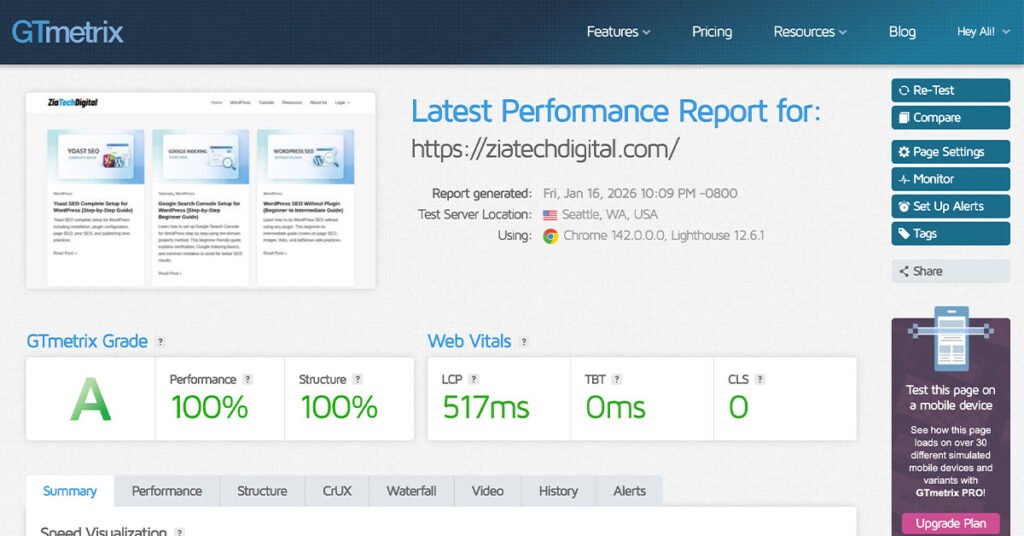
Final Results (Proof, Not Claims)
After this LiteSpeed Cache advanced setup:
- PageSpeed score reached 100%
- Core Web Vitals passed
- No layout break
- No mobile issues
- No plugin conflicts
Screenshots and live tests are shown inside the video.
Watch Full LiteSpeed Cache Advanced Setup Video
📌 Important:
This blog explains why things were done.
The exact settings are demonstrated step-by-step in the video below.
Final Recommendation
If you want:
- Speed + SEO
- No layout break
- Long-term stability
Do not use presets.
Understand the logic.
Follow the process shown in the video.